
Syntax
AsciiDoc syntax in practice
Following are the basic AsciiDoc syntaxes used in our documentation process.
Section Headings
= Document heading - Level 0

== Document heading - Level 1

=== Document heading - Level 2

==== Document heading - Level 3
Result
Lists
Unordered List
* Level 1
** Level 2
*** Level 3
**** Level 4
* Level 1
** Level 2
*** Level 3
**** Level 4
* Level 1
** Level 2
*** Level 3
**** Level 4
Result
-
Level 1
-
Level 2
-
Level 3
-
Level 4
-
-
-
-
Level 1
-
Level 2
-
Level 3
-
Level 4
-
-
-
-
Level 1
-
Level 2
-
Level 3
-
Level 4
-
-
-
Ordered List
. Level 1
.. Level 2
... Level 3
.... Level 4
. Level 1
.. Level 2
... Level 3
.... Level 4
. Level 1
.. Level 2
... Level 3
.... Level 4
Result
-
Level 1
-
Level 2
-
Level 3
-
Level 4
-
-
-
-
Level 1
-
Level 2
-
Level 3
-
Level 4
-
-
-
-
Level 1
-
Level 2
-
Level 3
-
Level 4
-
-
-
Basic text formatting
Paragraph
Paragraphs don't require special markup in AsciiDoc.
A paragraph is defined by one or more consecutive lines of text.
Line breaks within a paragraph are not displayed.

Leave at least one empty line to begin a new paragraph.
Result
Paragraphs don’t require special markup in AsciiDoc. A paragraph is defined by one or more consecutive lines of text. Line breaks within a paragraph are not displayed.
Leave at least one empty line to begin a new paragraph.
Hard line breaks
Roses are red, +
violets are blue.

[%hardbreaks]
A ruby is red.
Java is black.
Result
Roses are red,
violets are blue.
A ruby is red.
Java is black.
Bold
It has *strong* significance to me.Result
It has strong significance to me.
Italics
I _cannot_ stress this enough.Result
I cannot stress this enough.
Monospace
Type `OK` to accept.Result
Type OK to accept.
Highlight
Mark my words, #automation is essential#.Result
Mark my words, automation is essential.
Underline
Note this [underline]*sentence*.Result
Note this sentence.
Bold and Italics
That *_really_* has to go.Result
That really has to go.
Bold, Italic and Monospace
Can't pick one? Let's use them `*_all_*`.Result
Can’t pick one? Let’s use them all.
Unconstrained Bold, Italic and Monospace
**C**reate, **R**ead, **U**pdate, and **D**elete (CRUD)

That's fan__freakin__tastic!

Don't pass generic ``Object``s to methods that accept ``String``s!

It was Beatle**__mania__**!
Result
Create, Read, Update, and Delete (CRUD)
That’s fanfreakintastic!
Don’t pass generic Objects to methods that accept Strings!
It was Beatlemania!
Subscript and Superscript
-
Subscript: One tilde (~) on either side of a continuous run of text makes it subscript.
-
Superscript: One caret (^) on either side of a continuous run of text makes it superscript.
"`Well the H~2~O formula written on their whiteboard could be part of a shopping list, but I don't think the local bodega sells E=mc^2^,`" Lazarus replied.Result
“Well the H2O formula written on their whiteboard could be part of a shopping list, but I don’t think the local bodega sells E=mc2,” Lazarus replied.
Images
There are two AsciiDoc image macro types, block and inline. As with all macros, the block and inline forms differ by the number of colons that follow the macro name. The block form uses two colons (::), whereas the inline form only uses one (:).
Block Image
A block image is displayed as a discrete element, i.e., on its own line, in a document. A block image is designated by image macro name and followed by two colons (::) It’s preceded by an empty line, entered on a line by itself, and then followed by an empty line.
image::Sunset.png[Sunset,200]-
To insert a block image, type the image macro name directly followed by two colons (
::). -
After the colons, enter the image file target. Type a pair of square brackets (
[]) directly after the target to complete the macro. -
To specify an alternate name, width, and picture alignment, use a comma-separated list of attributes inside square brackets.
Result

Inline Image
An inline image is displayed in the flow of another element, such as a paragraph or sidebar block. The inline image macro is almost identical to the block image macro, except its macro name is followed by a single colon (:).
image:Sunrise.png[Sunset,205]
image:Sunset.png[Sunset,200]
Result

Inline Image in a sentence
Click image:play.png[] to get the party started.

Click image:pause.png[title=Pause] when you need a break.-
In the flow of an element, enter the macro name and a single colon (
imge:), followed by the image target. -
Complete the macro with a pair of square brackets (
[]). -
You can specify a comma-separated list of attributes inside the square brackets or leave them empty.
Result
Click  to get the party started.
Click  when you need a break.
Admonitions
There are certain statements you may want to draw attention to by taking them out of the content’s flow and labeling them with a priority. These are called admonitions. The AsciiDoc language provides five admonition types represented by the following labels:
-
NOTE
-
TIP
-
IMPORTANT
-
CAUTION
-
WARNING
The label must be uppercase and immediately followed by a colon (:). Separate the first line of the paragraph from the label by a single space.
NOTE: This is a note

TIP: This is a tip

IMPORTANT: This is an important information

CAUTION: This is a caution statement

WARNING: This is a warning statement
Result
| This is a note |
| This is a tip |
| This is an important information |
| This is a caution statement |
| This is a warning statement |
Table
Simple Table
[cols="1,1"]
|===
|row 1, column 1
|row 1, column 2
|row 2, column 1
|row 2, column 2
|===

[cols="1,1,1,1"]
|===
|row 1, column 1
|row 1, column 2
|row 1, column 3
|row 1, column 4
|row 2, column 1
|row 2, column 2
|row 2, column 3
|row 2, column 4
|===
Result
row 1, column 1 |
row 1, column 2 |
row 2, column 1 |
row 2, column 2 |
row 1, column 1 |
row 1, column 2 |
row 1, column 3 |
row 1, column 4 |
row 2, column 1 |
row 2, column 2 |
row 2, column 3 |
row 2, column 4 |
Merge rows in a table
[cols="1,1"]
|===
.2+|Fruits
|Apple
|Orange
.3+|Vegetables
|Carrot
|Beetroot
|Cabbage
|===
Result
Fruits |
Apple |
Orange |
|
Vegetables |
Carrot |
Beetroot |
|
Cabbage |
Merge columns in a table
[cols="3,3"]
|===
2+^|Fruits
^|Apple ^|Orange
2+^|Vegetables
^|Carrot ^|Beetroot ^|Cabbage
|===
Result
Fruits |
|
Apple |
Orange |
Vegetables |
|
Carrot |
Beetroot |
Attributes
Following are the attributes actively used by Documentation team:
-
:imagedir:
-
:icons:
-
:experimental:
Icons
Simple Icons
icon:google[] +
icon:file[] +
icon:arrow-up[] +
icon:arrow-right[] +
Result
Inline icons in a text
Do a icon:google[] search. +
Check this icon:file[]. +
Result
Do a search.
Check this .
Links
Autolinks
The homepage for the Asciidoctor Project is https://www.asciidoctor.org.Result
The homepage for the Asciidoctor Project is https://www.asciidoctor.org.
URL Macro
To transform a URL into a macro, add a pair of square brackets to the end of the URL.
The homepage for the Asciidoctor Project is https://www.asciidoctor.org[AsciiDoctor]Result
The homepage for the Asciidoctor Project is AsciiDoctor
Cross references
-
Create a cross reference by enclosing the ID of the target block or section (or the path of another document with an optional anchor) in double angled brackets (as shown in the image below):
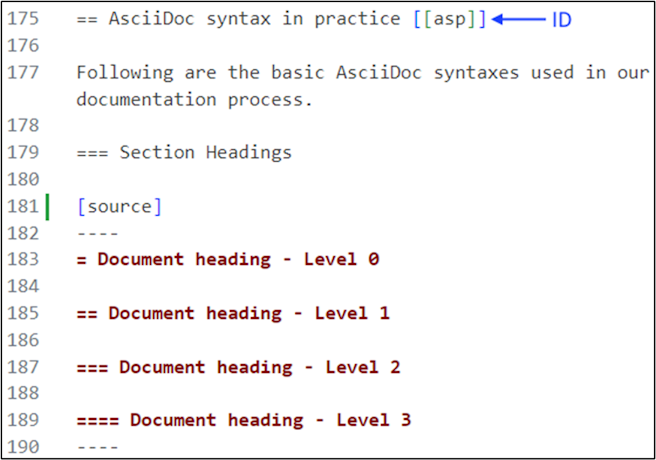
See <<asp>> to know the overview.Result
See AsciiDoc syntax in practice to know the overview.
Inter-document cross references
See to xref:../../Flux/ReleaseNotes#[Release notes] for more information on release notes at TMM.Result
See Release notes for additional information on how release notes function at TMM.