
Installation
-
Install MS Visual Studio Code
-
Add AsciiDoc Extension
-
Install Ruby Gems for AsciiDoctor
-
Download Bento (May require access permission, contact documentation team)
MS Visual Studio Code
-
Contact IT administrator to install the latest version of MS Visual Studio Code.
AsciiDoc Extension from VS Code
-
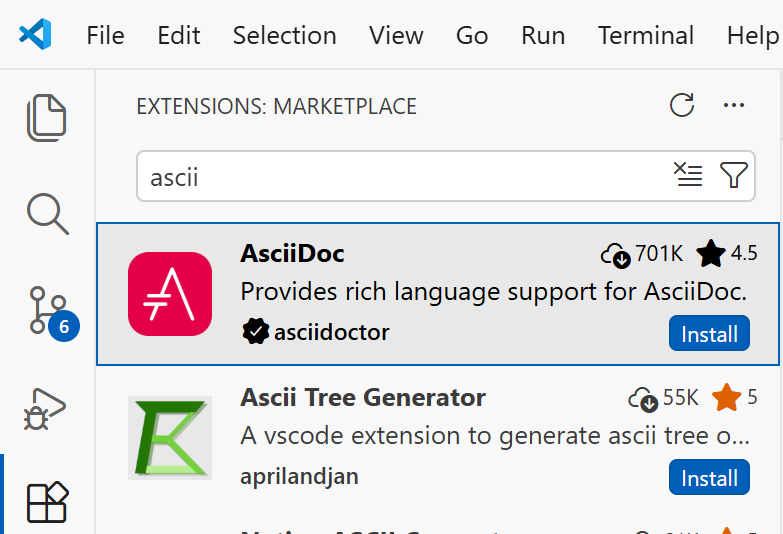
Open VS Code application and click the Extensions icon.
-
On the search field, type asciidoc and click Install under the AsciiDoc extension.
Install Ruby Gem
-
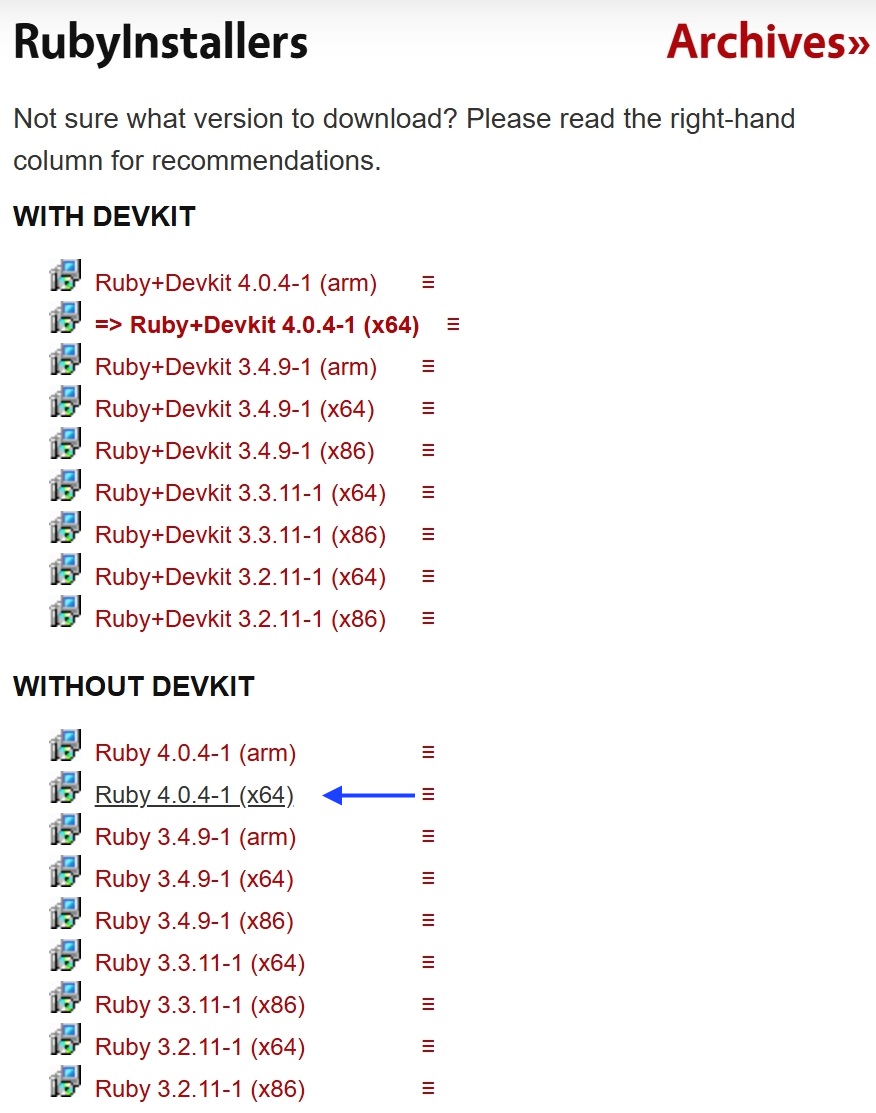
Download the WITHOUT DEVKIT Ruby 4.0.4-1 (x64) installer from the Ruby downloads page.
-
Go to downloads, unblock the setup file and run the installer.
-
Select Only for me when prompted.
-
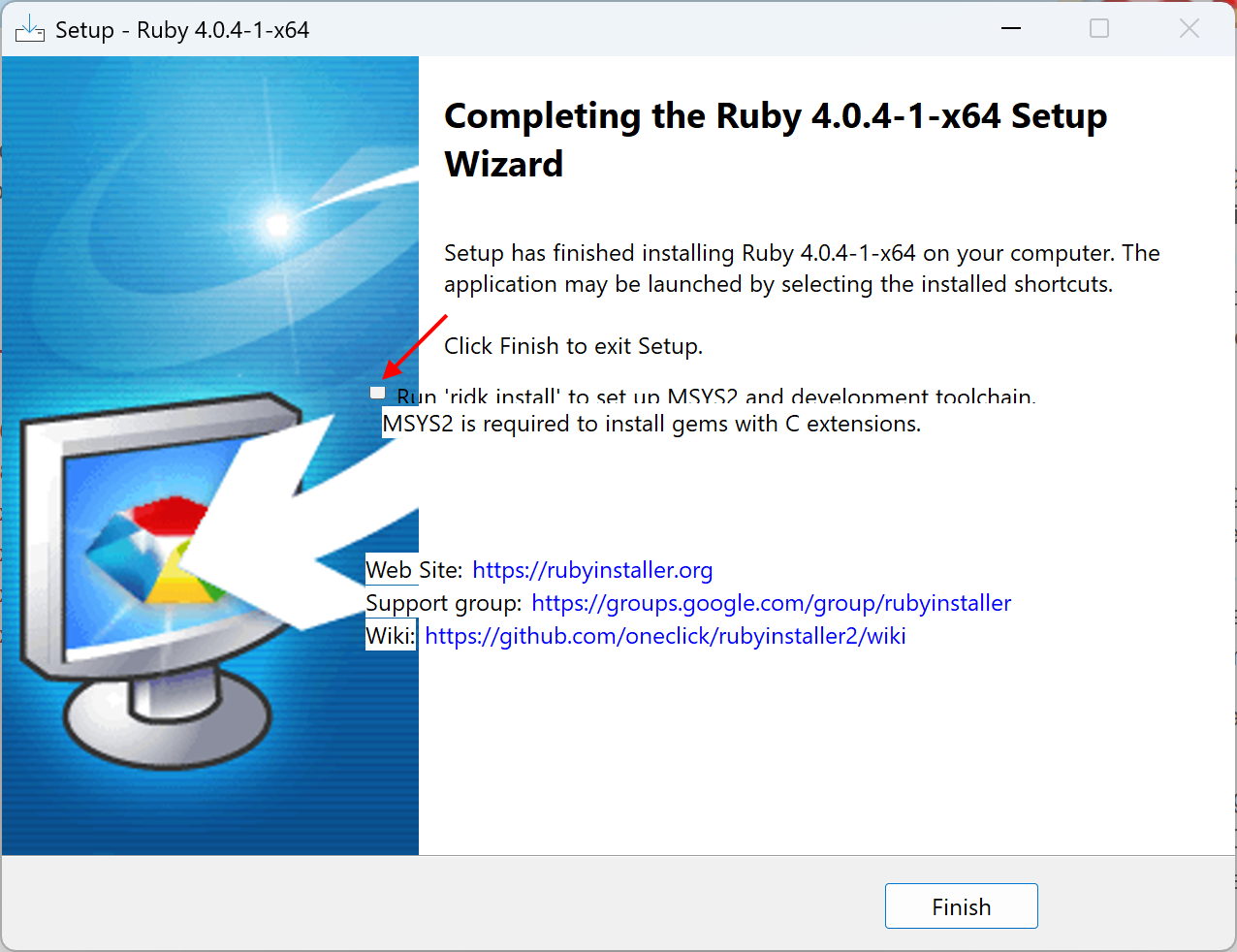
At the end of the installation remove the check for Run ridk install
-
click Finish.
Install AsciiDoctor
-
Open command prompt and run the following commands:
-
cmdkey /add:srv34prox.corp.trumpf.com /user:%username%You will be prompted to enter your password. After successful authentication, execute the commands shown below. -
gem install asciidoctor --http-proxy http://%username%@srv34prox.corp.trumpf.com:80 -
gem install asciidoctor-html5s --http-proxy http://%username%@srv34prox.corp.trumpf.com:80 -
gem install asciidoctor-diagram --http-proxy http://%username%@srv34prox.corp.trumpf.com:80 -
gem install asciidoctor-pdf --http-proxy http://%username%@srv34prox.corp.trumpf.com:80
-
-
Open command prompt and run the following commands:
-
gem install asciidoctorto install asciidoctor. -
asciidoctor --versionto confirm the asciidoctor installation. -
gem install asciidoctor-html5sto create html files. -
gem install asciidoctor-diagramto create diagrams. -
gem install asciidoctor-pdfto create pdf files.
-
Set Environment Variables for Ruby and Bento
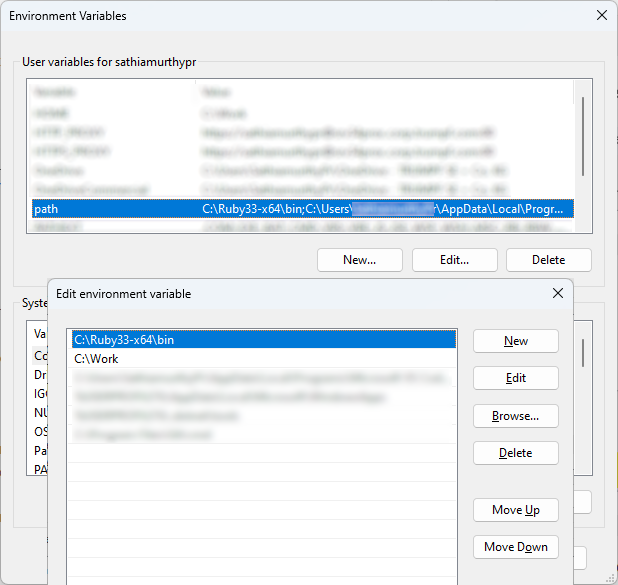
By default, Ruby path is added to the system environment variables. If not, follow the steps below to add Ruby to the path.
Add C:\Ruby33-x64\bin to path in user variable.
| Your latest Ruby version may be different, check the installation folder for the correct path. |
Add C:\Work to path in user variable.
Install and Run Bento
-
Place Bento.exe file in C:\Work.
-
Run
bento helpin the command prompt to verify the installation and view available commands.C:\Work>bento help Bento 58. Compilation swtiches: <no parameters> : compile project with default flavor -flavor=FLUX : set flavor to FLUX -attribute=ATTR : defines the conditional attribute ATTR -attribute=KEY:VALUE : defines the attribute KEY to VALUE -rebuild : force a complete rebuild (not incremental) -uixlate : looks up UI terms from the language string tables -debuguixlate : highlight every UI term in yellow -language=FR : sets uixlate language (default = EN) -altlanguage=EN : also includes second language translations in [Brackets] -checkorphans : check for orphaned pages & images Operations: remove Page1 : removes the Page1.adoc page rename Page2 AltPage : renames Page2.adoc to AltPage.adoc move Page3 Folder : moves Page3.adoc to specified Folder pngcrush Folder : optimizes PNG files in Folder (and subfolders) pngcrush File.png : optimizes specific PNG file -
Go to any of the document folder and type
bentoto compile.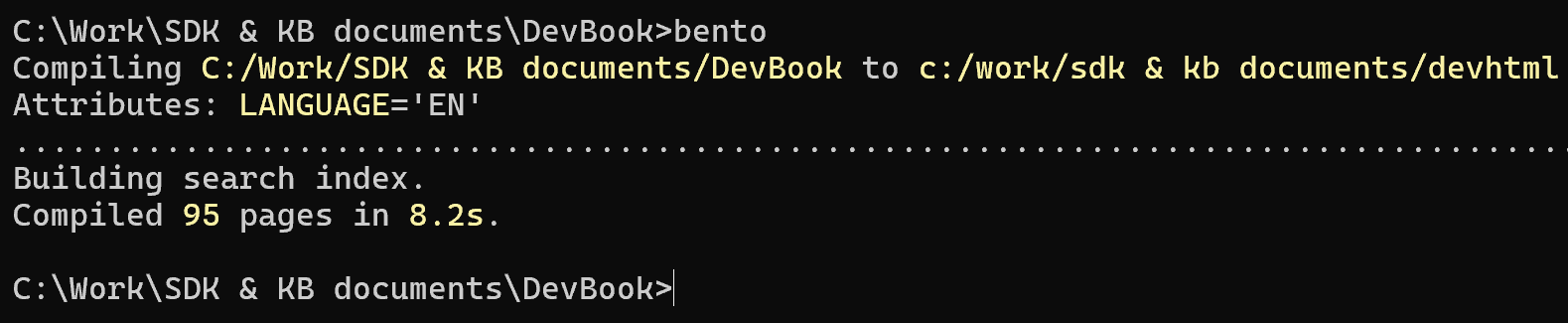
-
Bento compilation may list errors, if any, which need to be fixed in order to generate the output files. Once the errors are fixed, run
bentocommand again to compile successfully.