
Testing with Windows Sandbox
This document explains how to run UI test automation scripts in Windows Sandbox
Windows Sandbox
Windows Sandbox provides a lightweight desktop environment to safely run applications in isolation. Software installed inside the Windows Sandbox environment remains "sandboxed" and runs separately from the host machine. A sandbox is temporary. When it’s closed, all the software and files and the state are deleted. You get a brand-new instance of the sandbox every time you open the application. This makes 'Sandbox' ideal for use in Sanity/Smoke testing.
Prerequisites
-
ARM64 (for Windows 11, version 22H2 and later) or AMD64 architecture
-
Virtualization capabilities enabled in BIOS
-
At least 4 GB of RAM (8 GB recommended)
-
At least 1 GB of free disk space (SSD recommended)
-
At least two CPU cores (four cores with hyper-threading recommended)
Installation
Use the search bar on the task bar and type Turn Windows Features on or off to access the Windows Optional Features tool. Select Windows Sandbox and then OK. Restart the computer if you’re prompted.
If the Windows Sandbox option is unavailable, your computer doesn’t meet the requirements to run Windows Sandbox.
To enable Sandbox using PowerShell, open PowerShell as Administrator and run the following command:
Enable-WindowsOptionalFeature -FeatureName "Containers-DisposableClientVM" -All -OnlineLocate and select Windows Sandbox on the Start menu to run it for the first time.
Windows Sandbox supports simple configuration files, which provide a minimal set of customization parameters for Sandbox. Windows Sandbox configuration files are formatted as XML and are associated with Sandbox via the .wsb file extension. An example wsb file is shown below. The below text can be saved to a file with .wsb extension which can be double clicked to open a sandbox instance with the specified configurations.
<Configuration>
  <Networking>Enable</Networking>
  <MappedFolders>
    <MappedFolder>
      <HostFolder>C:\Users\username\source\repos</HostFolder>
      <SandboxFolder>C:\Users\WDAGUtilityAccount\desktop\repos</SandboxFolder>
      <ReadOnly>false</ReadOnly>
    </MappedFolder>
	<MappedFolder>
      <HostFolder>C:\mm\sandbox</HostFolder>
      <SandboxFolder>C:\mm\sandbox</SandboxFolder>
      <ReadOnly>false</ReadOnly>
    </MappedFolder>
  </MappedFolders>
  <LogonCommand>
  <Command>c:\mm\sandbox\startup.bat</Command>
  </LogonCommand>
</Configuration>
Folders on the host machine can be mapped to the specified path on the sandbox so that files in the host machines can be accessed inside the sandbox.
Logon commands are executed after the sandbox is started. We can use batch (.bat) or powershell scripts to perform actions after the sandbox is started. An example batch file is given below.
Note: The batch file should be accessible from inside the sandbox for it to be executed. In the example xml file, the batch file location on the host ("c:\mm\sandbox") has been mapped to the sandbox.
REM FluxTester prerequisites
md c:\mm\bin
c:\mm\sandbox\dotnet7.exe /quiet
REM Set LicenseServer to SYS546 or its current IP address in the TMM network
md c:\programdata\metamation\flux\recent
echo [Basic] > c:\programdata\metamation\flux\recent\notes.ini
echo LicenseServer=192.168.1.183 >> c:\programdata\metamation\flux\recent\notes.ini
REM Run Flux setup file without any prompts
c:\mm\sandbox\setup.Flux.545.exe /SP- /SILENT
Note: REM indicates a comment in the batch file
A screen recording of starting a new sandbox instance and running some automated tests can be found here.
Notes
Flux and other application require OpenGL to work correctly. There are a couple of requirements to enable this in Windows sandbox.
-
Hardware access inside virtualization (Intel VT-d for Intel PCs) should be enabled in bios
-
Above 4G Decoding should also be enabled in bios if available
-
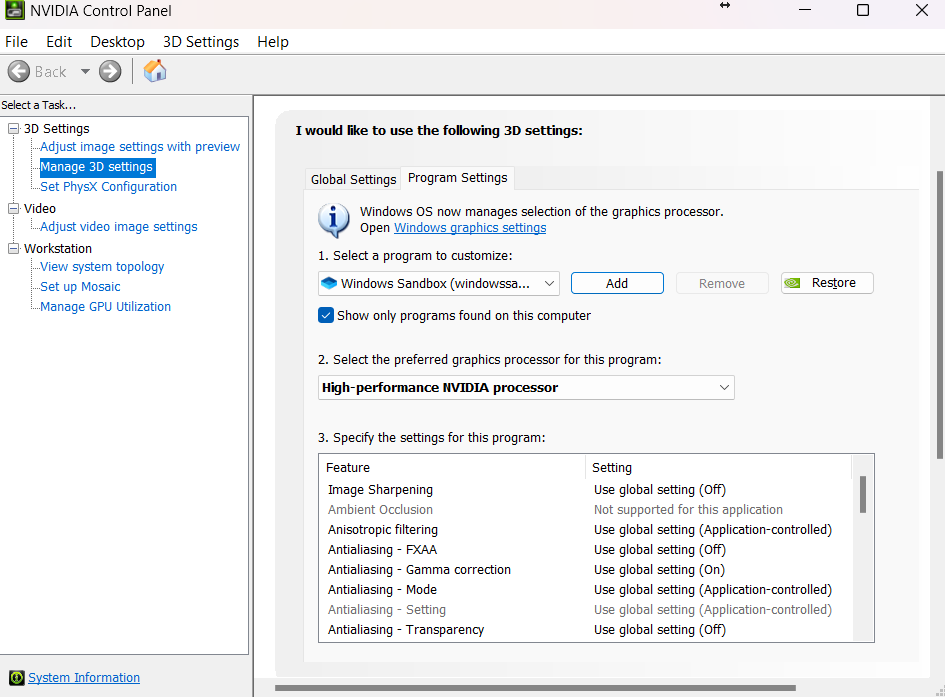
If running on a laptop with both integrated and discrete gpus, make sure Windows Sandbox application is using the discrete gpu. Also set power profile setting to high performance if running on battery.
Eg: In a Laptop with Intel and NVidia GPUs, set preferred gpu in NVidia control panel as shown below
The license server running in SYS546 has limited seats available. Check if free seats are available before running tests.