Metamation Developer Notes

  • Developer Notes
  • Resource Map
  • Tools
    • Code Formatting
    • Configuring Git
    • Assignments
    • Testing with Windows Sandbox
    • Single Binary Applications
    • Self-Updating Applications
  • Flux Workflow
    • Flux Workflow
    • Flux Development Style Guide
    • Release notes for Flux
    • SonarCloud analysis for Flux
    • Build a Flux SDK Program
    • Shipping Flux
    • Flux.Test
      • BasicBendAuto Test
      • LaserAuto.cs Detailed Documentation
      • Laserexample:Test1
  • Technical Notes
    • File formats
      • .FX File Format
      • Au(Gold) streams
      • .GEO File Format
      • .LST File Format
      • .LST file - technology
      • .BNC File Format
      • .WAD Files: Flux Resource Packages
      • .Curl Files: ASCII config information
    • Folders App
      • Data\Bendtools
      • Data\Machines
    • FluxCode
      • Welcome & Repo Map
      • Architecture & System Context
      • Subsystem *Bend* (Press Brake)
      • Subsystem *BCell* (Bend Cell Automation)
      • API Maps
      • Data Model Catalog
      • Design Patterns -- A Reader's Guide
      • Tests and Golden Paths
      • Guided Code Tours
      • CAM Glossary with Code Mapping
      • Assignments
      • Flux Onboarding Handbook
    • Data flow
      • Part
        • Part.Dwg
        • Part.Load
        • Part.Load to Part.Dwg
      • BendTech.cs
      • Bend Technology
      • Laser Cutting Technology
    • LTS (Long term support mechanism)
    • Machine ID Scheme
  • FluxTester
    • Commands and Scripts
    • Command Cookbook
    • Script Commands
    • BendTooling.cs Test Inventory
    • LaserTooling.cs Test Steps
    • Fluxtester Recipe Book
    • Nesting.cs Overview
    • Nesting.cs Recipe Book
    • Job.cs Overview
    • Job.cs Recipe Book
  • Software license
  • 3d party software
    • Python
  • Documentation
    • Bento documentation
      • Structure of a Bento page
      • Attributes
    • Software
      • Software Requirement
      • Installation
      • Git workflow for documentation contributors
    • Quick start guide
    • Workflow
      • Roles and responsibilities
      • Analyze
      • Edit
      • Proofread
      • Pre-Publish
      • Publish
      • Release cycle
      • Information required for Documentation Team
      • Checklist for Documenters
    • Styleguide
    • Flavoring
    • Translation
      • Ordering translation for a new document
    • Citations
    • Annotation
Documentation
/
Workflow
/
Analyze

Analyze

FogBugz - Documention cases creation and analysis

Case creation inputs

  1. Inputs for document case creation is provided by the following channels:

    • DocTeam

    • Product Owners

    • Developers

    • Internal Customers

DocTeam case handling scenarios

  1. The DocTeam handles cases in the following scenarios:

    1. DocUpdate Cases: When Product Owners or Developers mark a case with DocUpdate tag in FogBugz, the DocTeam creates a sub/child case, marking the original case as the parent. After creating the sub/child case, the DocUpdate tag is removed from the parent case.
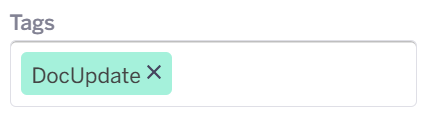
      docupdate
    2. DocTeam Cases: If DocTeam identifies a need for refinement in a document, the team creates a case to address the necessary corrections or improvements.

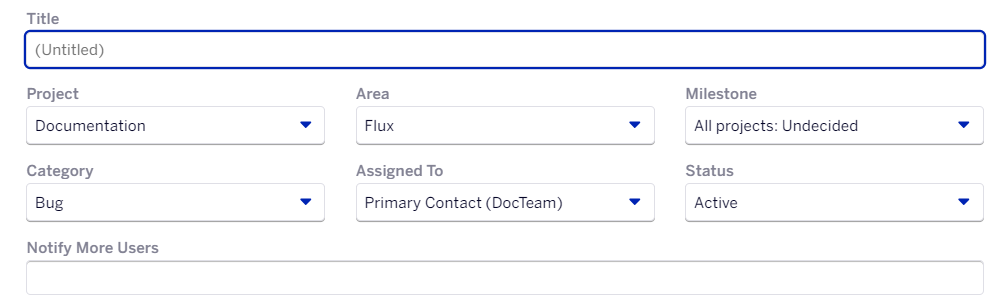
When DocTeam creates a new case in FogBugz, it is necessary that the following fields are filled as follows,
i. Project → Documentation
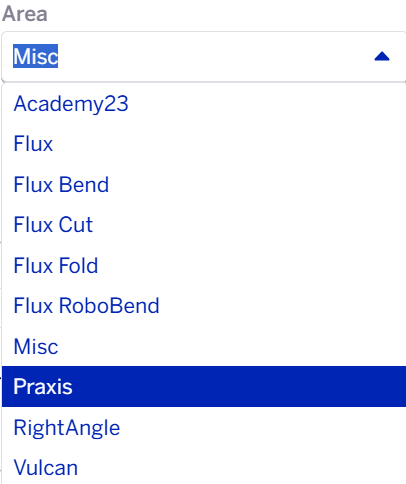
ii. Area → Select it according to a particular case
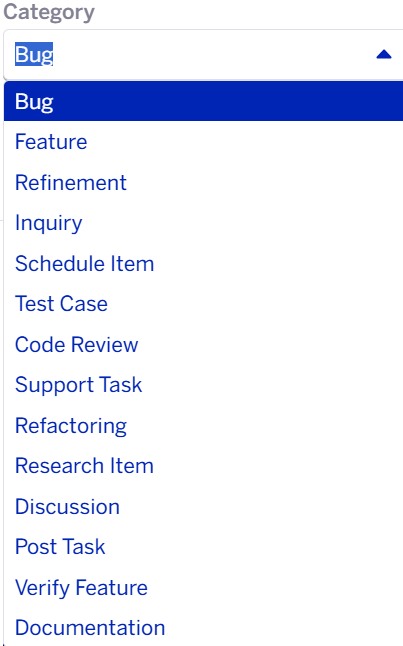
iii. Category → Inquiry (Initially, the category is set as "inquiry" until the respective Product Owner or Developer approves the changes for updating. Once approved, the category will be changed accordingly)
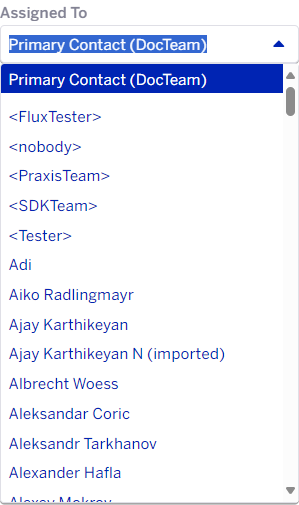
iv. Assign to → DocTeam

Post-case creation

  1. Once the case is created, inquire the case with the case creator to set priority and due date.

  2. Then assign the case to the specific DocTeam member.

Document analysis

  1. The assigned member has to analyze the case input.

  2. Clarify any doubts with the Product Owners.

  3. Ensure quality input is received within a reasonable time period.

    1. If received, proceed to create a document skeleton.

    2. If not received, mark the case with NeedInfo tag in FogBugz and proceed with document creation based on available knowledge.

Content addition/editing

  1. Start adding or editing content in the document.

  2. For more details on the adding/editing process, refer to Edit.

How to create case in FogBugz

  1. Log in to FogBugz

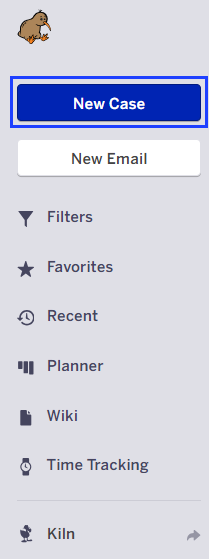
  2. Click on New case.

    300

  3. Enter the case Title.

    300

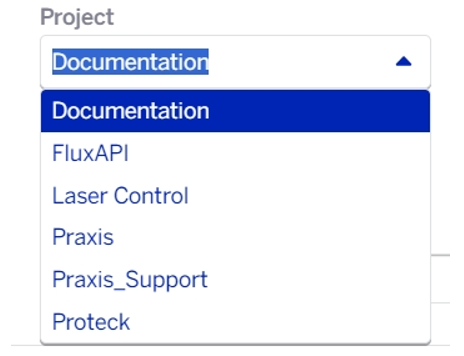
  4. Select Documentation from Project dropdown list.
    300

  5. Select the Area that corresponds to a particular case.
    300

  6. Select the Category that corresponds to a particular case.

    Inquiry, Feature, Refinement and Bug are the categories frequently used by Documentation team.
    300

  7. Assign the case to a person or a team by selecting the Assigned To dropdown list.
    300

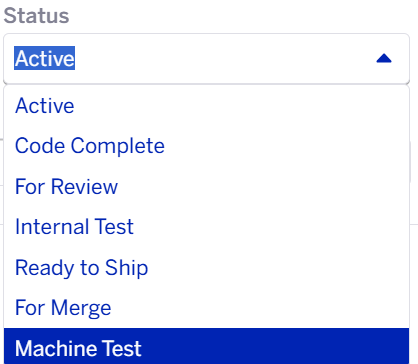
  8. Set the Status of a particular case.

    Active, For Review, For Merge and Ready to Ship (Publish) are the statuses frequently used by Documentation team.
    300

  9. Add users in Notify More Users about the status of your project.

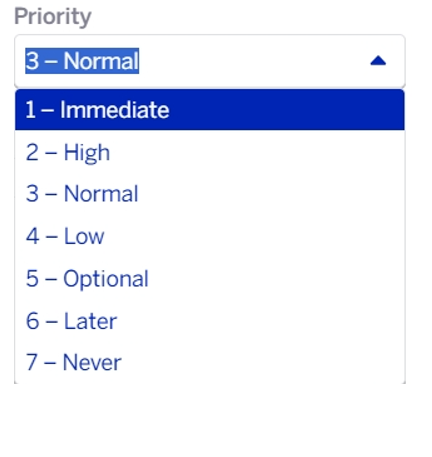
  10. Set Priorities based on the task requirement.
    300

  11. Add parent cases and subcases if applicable.

  12. Add due date as required.

  13. Click the Open button to create a case.
    300

The creator of a specific case is responsible for closing it once the content for the case is published.

Contents

  • FogBugz - Documention cases creation and analysis
  • Case creation inputs
  • DocTeam case handling scenarios
  • Post-case creation
  • Document analysis
  • Content addition/editing
  • How to create case in FogBugz
Roles and responsibilities Edit

      Copyright © 2025 TRUMPF Metamation. All rights reserved.

    Compiled by Bento