Metamation Developer Notes

  • Developer Notes
  • Resource Map
  • Tools
    • Code Formatting
    • Configuring Git
    • Assignments
    • Testing with Windows Sandbox
    • Single Binary Applications
    • Self-Updating Applications
  • Flux Workflow
    • Flux Workflow
    • Flux Development Style Guide
    • Release notes for Flux
    • SonarCloud analysis for Flux
    • Build a Flux SDK Program
    • Shipping Flux
    • Flux.Test
      • BasicBendAuto Test
      • LaserAuto.cs Detailed Documentation
      • Laserexample:Test1
  • Technical Notes
    • File formats
      • .FX File Format
      • Au(Gold) streams
      • .GEO File Format
      • .LST File Format
      • .LST file - technology
      • .BNC File Format
      • .WAD Files: Flux Resource Packages
      • .Curl Files: ASCII config information
    • Folders App
      • Data\Bendtools
      • Data\Machines
    • FluxCode
      • Welcome & Repo Map
      • Architecture & System Context
      • Subsystem *Bend* (Press Brake)
      • Subsystem *BCell* (Bend Cell Automation)
      • API Maps
      • Data Model Catalog
      • Design Patterns -- A Reader's Guide
      • Tests and Golden Paths
      • Guided Code Tours
      • CAM Glossary with Code Mapping
      • Assignments
      • Flux Onboarding Handbook
    • Data flow
      • Part
        • Part.Dwg
        • Part.Load
        • Part.Load to Part.Dwg
      • BendTech.cs
      • Bend Technology
      • Laser Cutting Technology
    • LTS (Long term support mechanism)
    • Machine ID Scheme
  • FluxTester
    • Commands and Scripts
    • Command Cookbook
    • Script Commands
    • BendTooling.cs Test Inventory
    • LaserTooling.cs Test Steps
    • Fluxtester Recipe Book
    • Nesting.cs Overview
    • Nesting.cs Recipe Book
    • Job.cs Overview
    • Job.cs Recipe Book
  • Software license
  • 3d party software
    • Python
  • Documentation
    • Bento documentation
      • Structure of a Bento page
      • Attributes
    • Software
      • Software Requirement
      • Installation
      • Git workflow for documentation contributors
    • Quick start guide
    • Workflow
      • Roles and responsibilities
      • Analyze
      • Edit
      • Proofread
      • Pre-Publish
      • Publish
      • Release cycle
      • Information required for Documentation Team
      • Checklist for Documenters
    • Styleguide
    • Flavoring
    • Translation
      • Ordering translation for a new document
    • Citations
    • Annotation
Documentation
/
Translation
/
Ordering translation for a new document

Ordering translation for a new document

Ordering translation requires access to the Plunet system, which is used by TRUMPF to manage translation projects. To order translation for a new document, follow these steps:

Before placing a translation order, it is recommended to create a quote request in Plunet to estimate the cost and delivery time. This supports better planning and budgeting for the translation project.

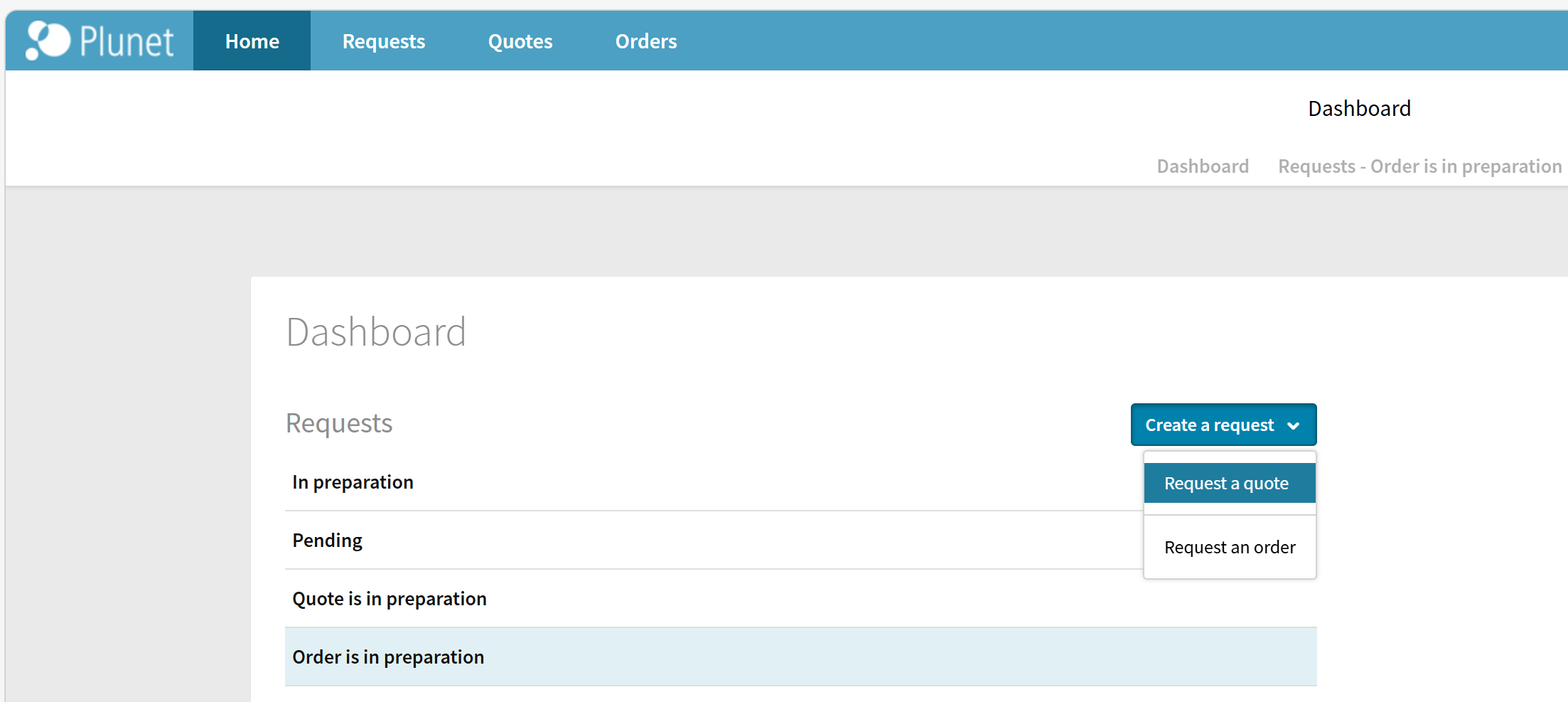
  1. Create a new quote request:

    Create a new quote request

  2. Enter the following details:

    Example details for a quote request
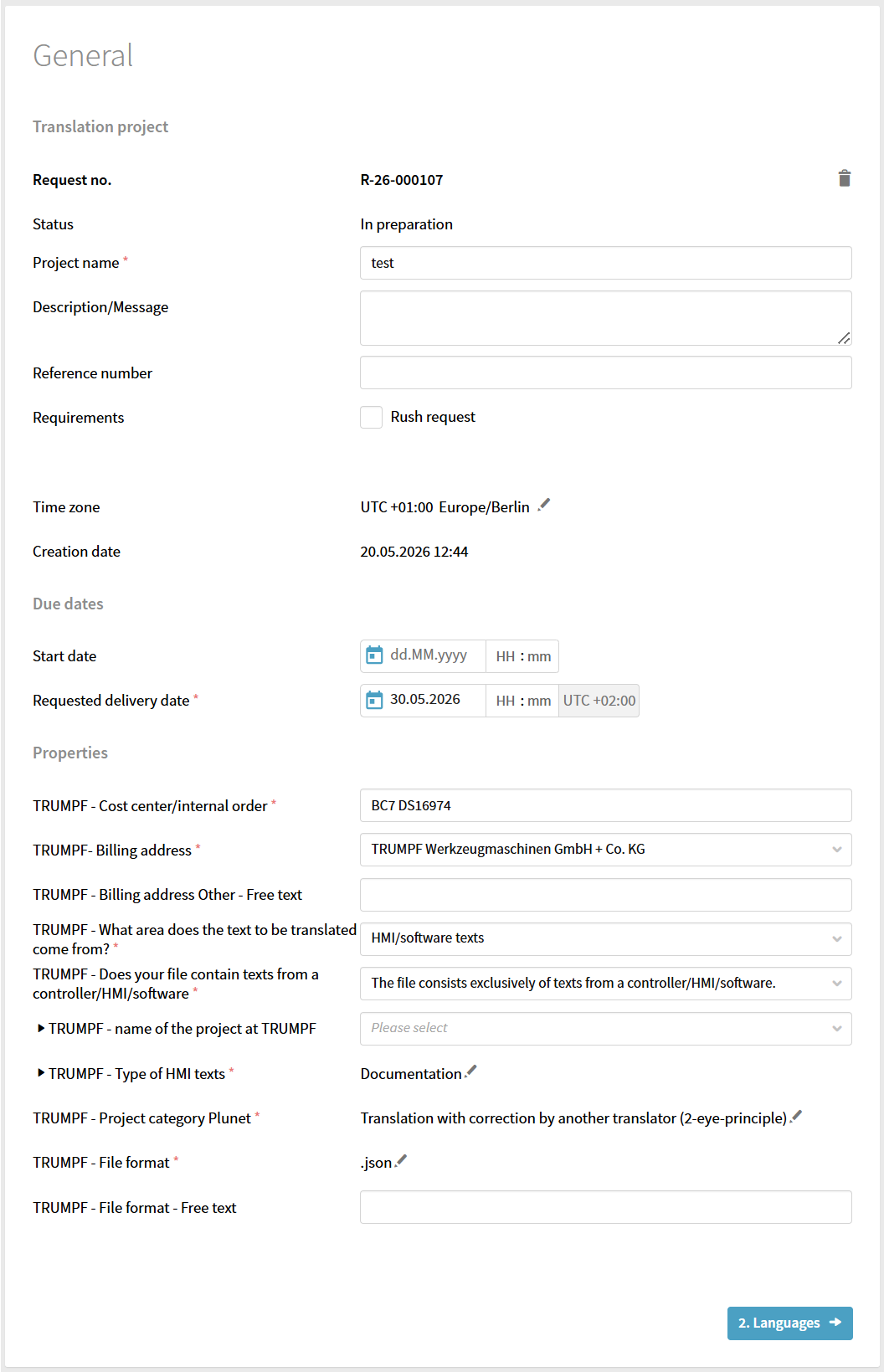
    Enter the details

    • Project Name — Enter the project name as free text using the conventions below:

      For User Interface (UI) translations
      • Praxis - Xlate

      • Flux Cut - Xlate

      • Flux Bend - Xlate

      • RA - Xlate

      • Vulcan - Xlate

      For Online Help documents
      • Praxis

      • FLUX

      • RA

      • Vulcan

    • Request Delivery — Select the desired delivery date. Plan ahead to avoid rush orders.

    • TRUMPF Cost center/Internal Order — Enter cost center: Check with documentation team.

    • TRUMPF Billing Address — Select: TRUMPF Werkzeugmaschinen + Co. KG

    • TRUMPF - What area does the text to be translated come from? — Select: HMI/Software texts

    • TRUMPF - Does your text contain texts from a controller/HMI/software? — Select: The file consists exclusively of texts from a controller/HMI/software

    • TRUMPF - Type of HMI texts — Select: Documentation

    • TRUMPF - Project category plunet — Select: Documentation

    • TRUMPF - File format:

      • For UI: .json

      • For Online Help: .adoc

  3. Add language requirements

    Example language requirements
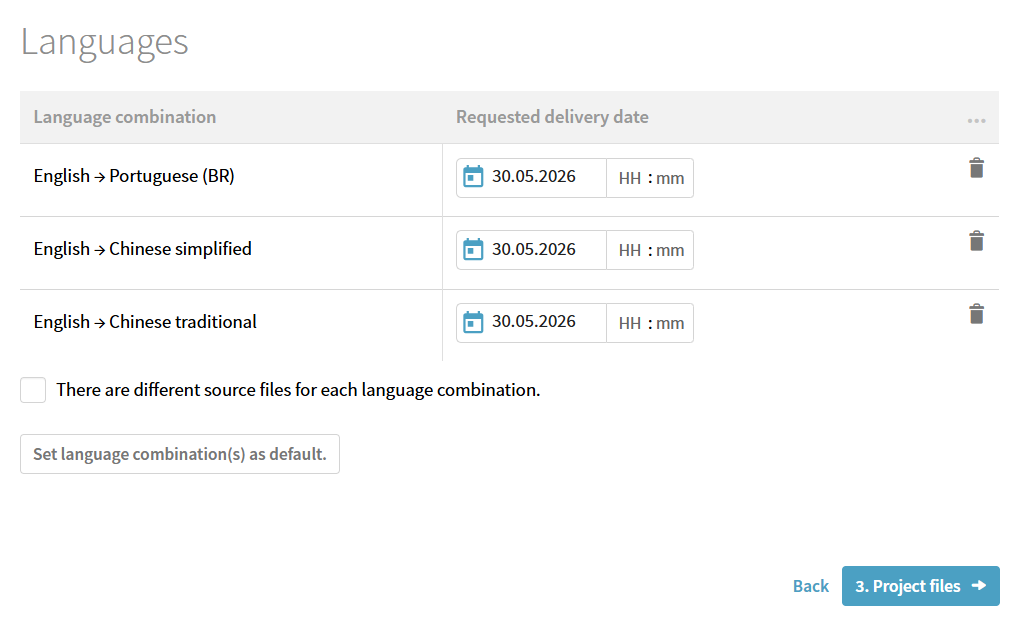
    Add language requirements

  4. Upload the source file for translation.
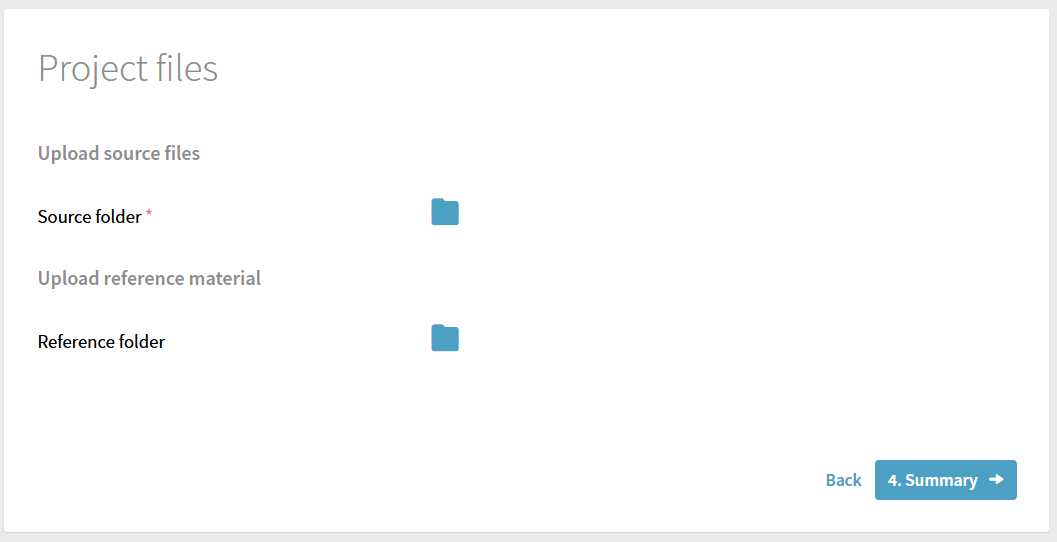
    Upload source file and submit the quote request
  5. Click on Summary and review the details. If everything is correct, click on Submit to place the quote request.

Once you receive the quote from the Plunet system, get the approval from your manager, and you can proceed to place the actual translation order by writing an email to MT5 team in TRUMPF with the approved quote. The MT5 team will then create the order in Plunet and coordinate with the translation agency to get the work done. Make sure to provide all necessary details and the approved quote in your email to avoid any delays in processing the order.

Translation Citations

      Copyright © 2025 TRUMPF Metamation. All rights reserved.

    Compiled by Bento