
Testing in Controller
IP Information
-
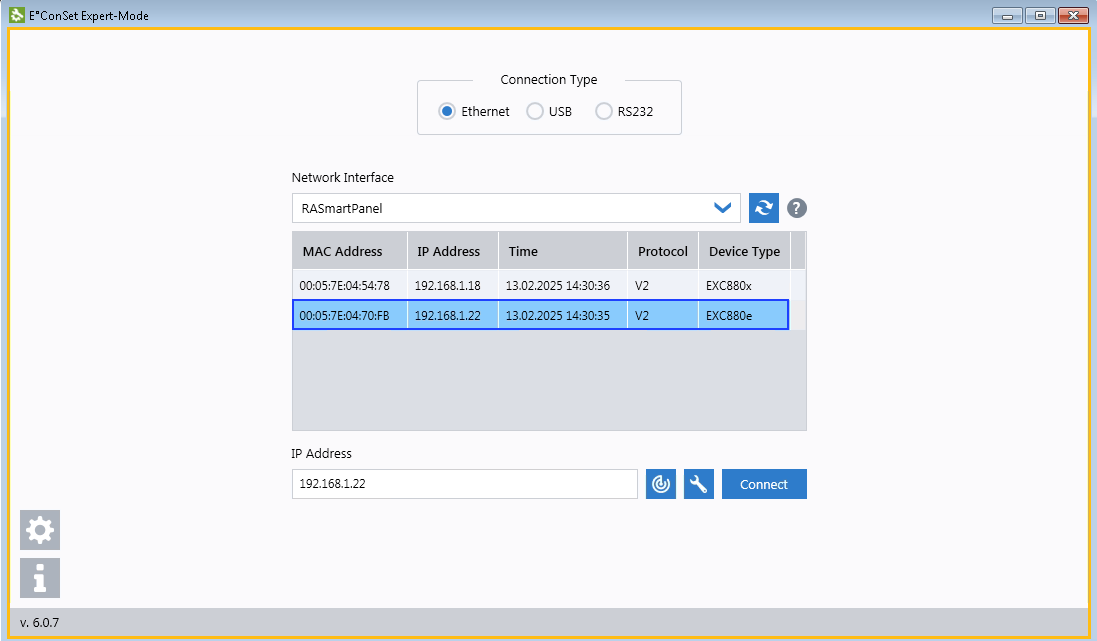
Ip address of controller is 192.168.1.22
-
The IP address of the machine with RightAngle for downloading firmware and plc application is 192.168.1.188.
RightAngle Using PC Simulator
-
You can connect via remote desktop connection with the following credentials:
-
IP address - 192.168.1.188
-
Username - IMM
-
Password - Meta@119.
-
-
Ensure Team Viewer 12 is active and log in using the following credentials:
-
User ID: 283641760
-
Password: v1yb23.
-
-
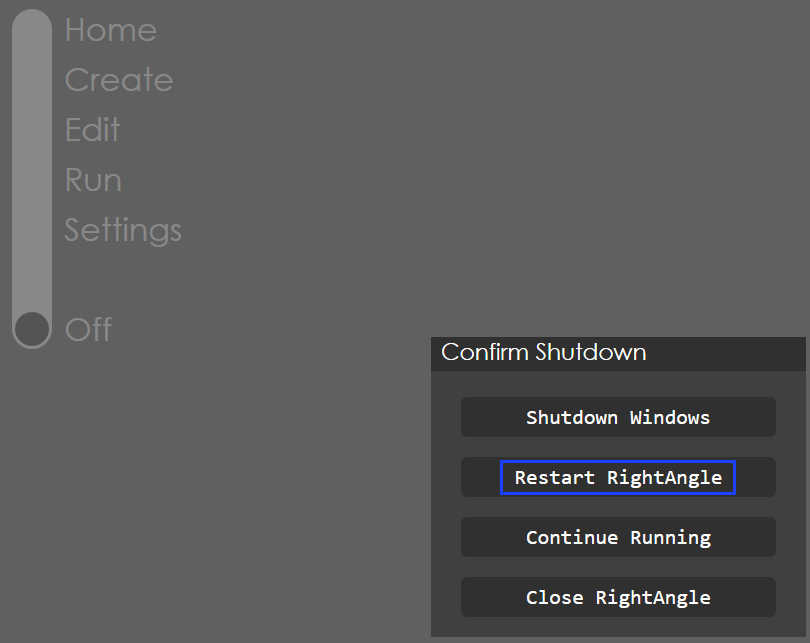
Run RightAngle in PC Simulator to load the firmware and bending program. To restart the controller, open RightAngle, press Off, and then select Restart RightAngle.
Setting IP address of the Controller
-
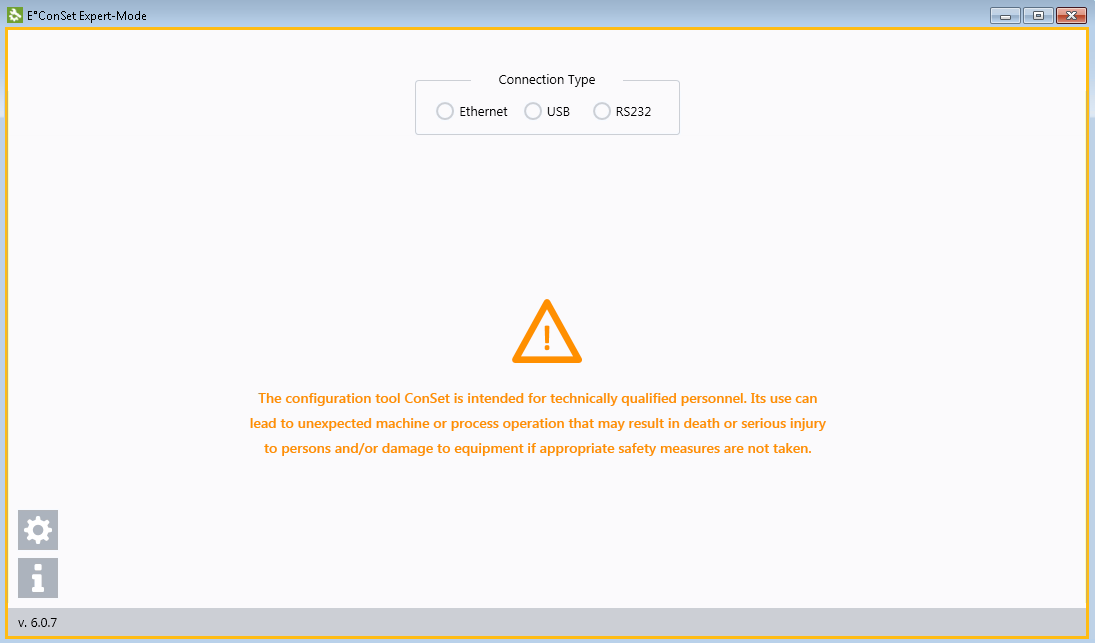
Open E°ConSet.
-
Select Ethernet from connection type.
-
Select the required IP address.
-
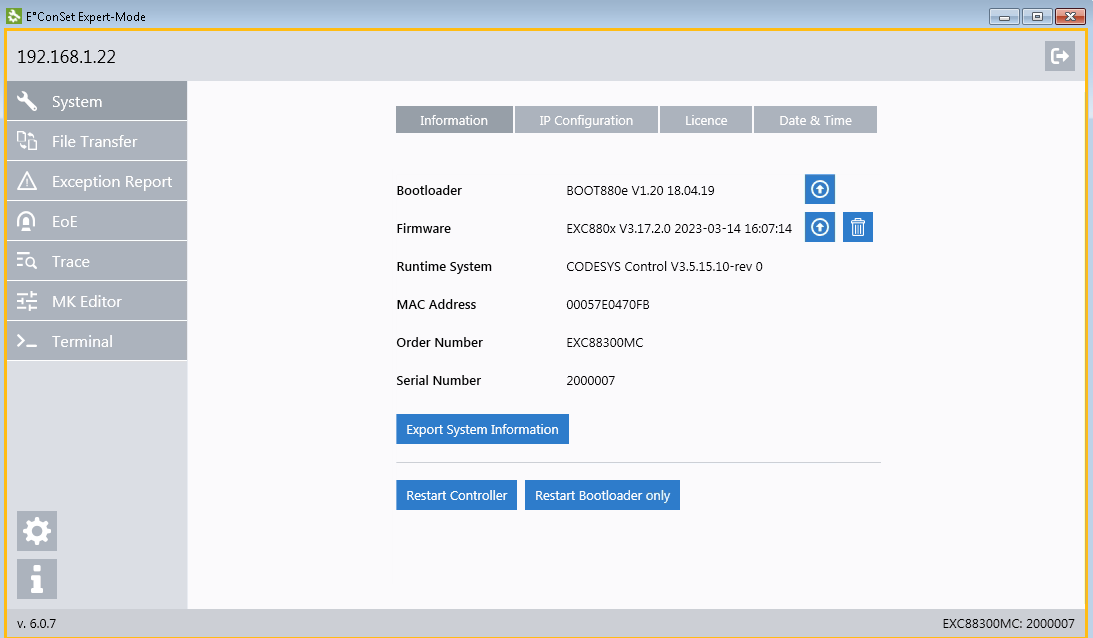
Click Connect and check system information.
Running RightAngle with Smart Control
Pre-requisites
-
The controller and PC are connected to the office’s internal network. If accessing from your home network, you will need VPN access to the internal network.
-
RightAngle should be configured as below in
C:\ProgramData\Metamation\RA\RData\Middleware.ini:[Basic] DemoMode=0 LaserSafeDemoMode=1 ControllerIP=192.168.1.22 -
Firmware and PLC program (bending.app) should have been loaded in the controller.
| Make sure to take bending.app and bending.crc from the controller system. |
Editing environment variable
-
Press and search for Edit environment variables for your account.
-
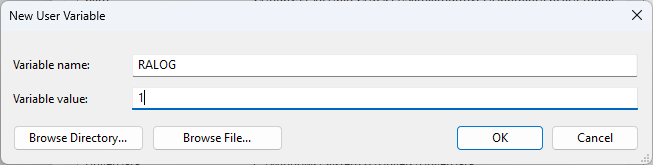
In the user variables, click New… and type the variables name as RALOG and the value as 1. Press OK to confirm the action.
Steps to run RightAngle
-
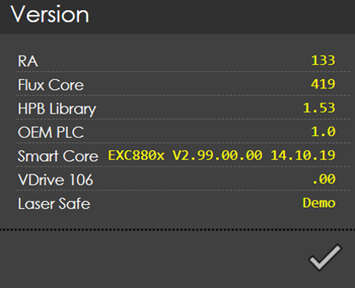
Open RightAngle and click Metamation logo at the bottom right corner. HPB Library, OEM PLC, Smart Core and VDrive 106 should display version number instead of Demo.
-
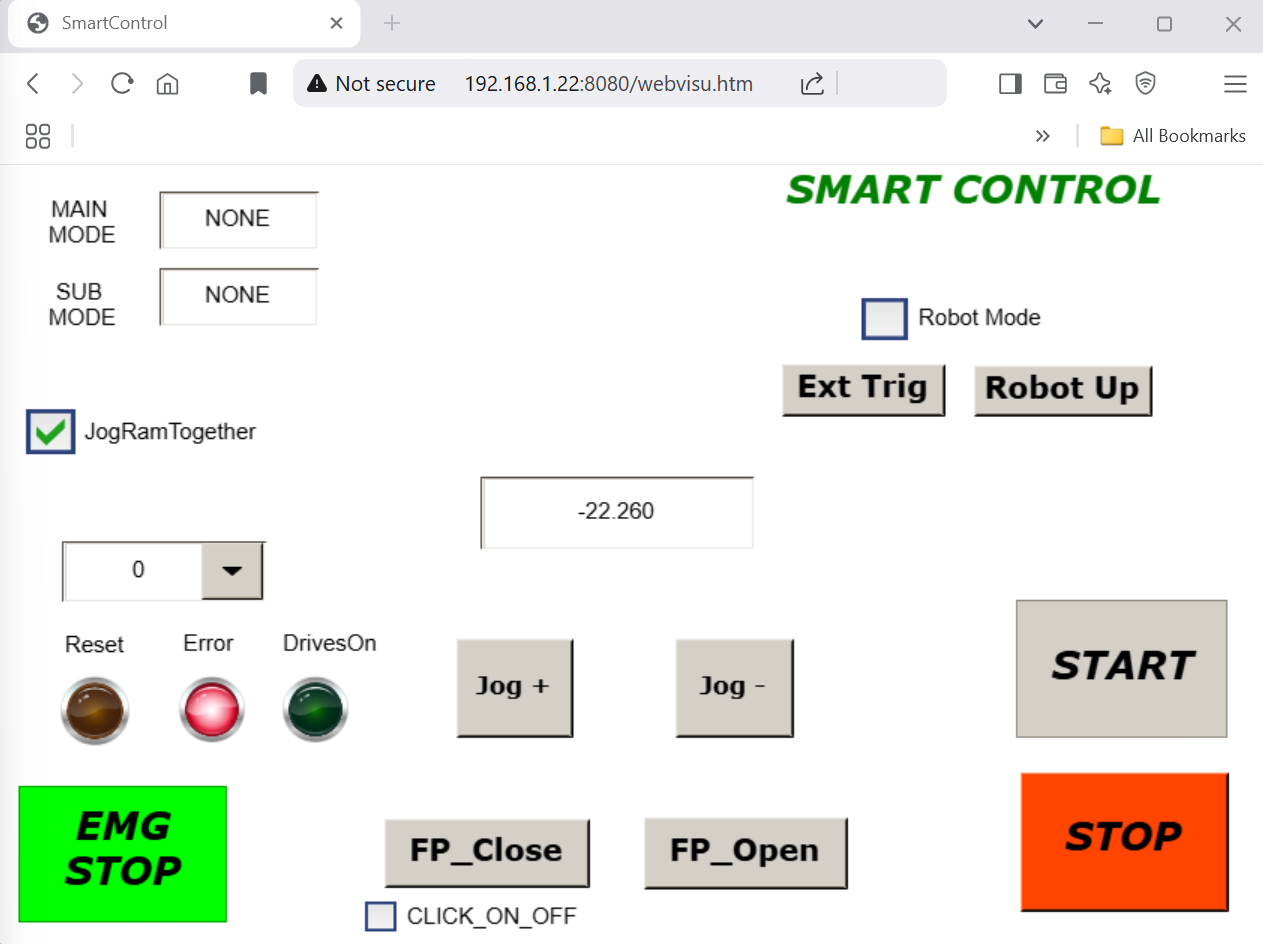
To open Smart Panel, go to http://192.168.1.22:8080/webvisu.html using web browser.
-
The following screen should be displayed:
-
Bookmark this URL for easy access of Smart Control for future use.
Troubleshoot
When RightAngle is connected to the controller, perform the following checks to troubleshoot:
-
If the Smart panel does not open, ensure that the configuration of IP Information and Setting IP address of the Controller are right.
-
Open command prompt, and type ping 192.168.1.188. Do similar check for 192.168.1.22. The output should be as shown below:
Pinging 192.168.1.188 with 32 bytes of data: Reply from 192.168.1.188: bytes=32 time=56ms TTL=127 Reply from 192.168.1.188: bytes=32 time=68ms TTL=127 Reply from 192.168.1.188: bytes=32 time=53ms TTL=127 Reply from 192.168.1.188: bytes=32 time=46ms TTL=127 Ping statistics for 192.168.1.188: Packets: Sent = 4, Received = 4, Lost = 0 (0% loss), Approximate round trip times in milli-seconds: Minimum = 46ms, Maximum = 68ms, Average = 55ms -
If ping is not successful, the following could be the reason:
-
Internal network of TMM is not connected.
-
IP address of the PC or controller may have been changed. Contact network administrator.
-
-
-
If the message "PLC not connected" appears in the RightAngle, then rename the RightAngle setup file from Setup.RightAngle.exe to Setup.RAControl.exe and install again.
-
If the below mentioned PLC version not compatible error message appears in the RightAngle, then the Firmware and PLC program are not correctly loaded into the controller. See RightAngle Using PC Simulator to check the firmware is properly loaded.
 Figure 1. PLC version not compatible