
Structure of a Bento page
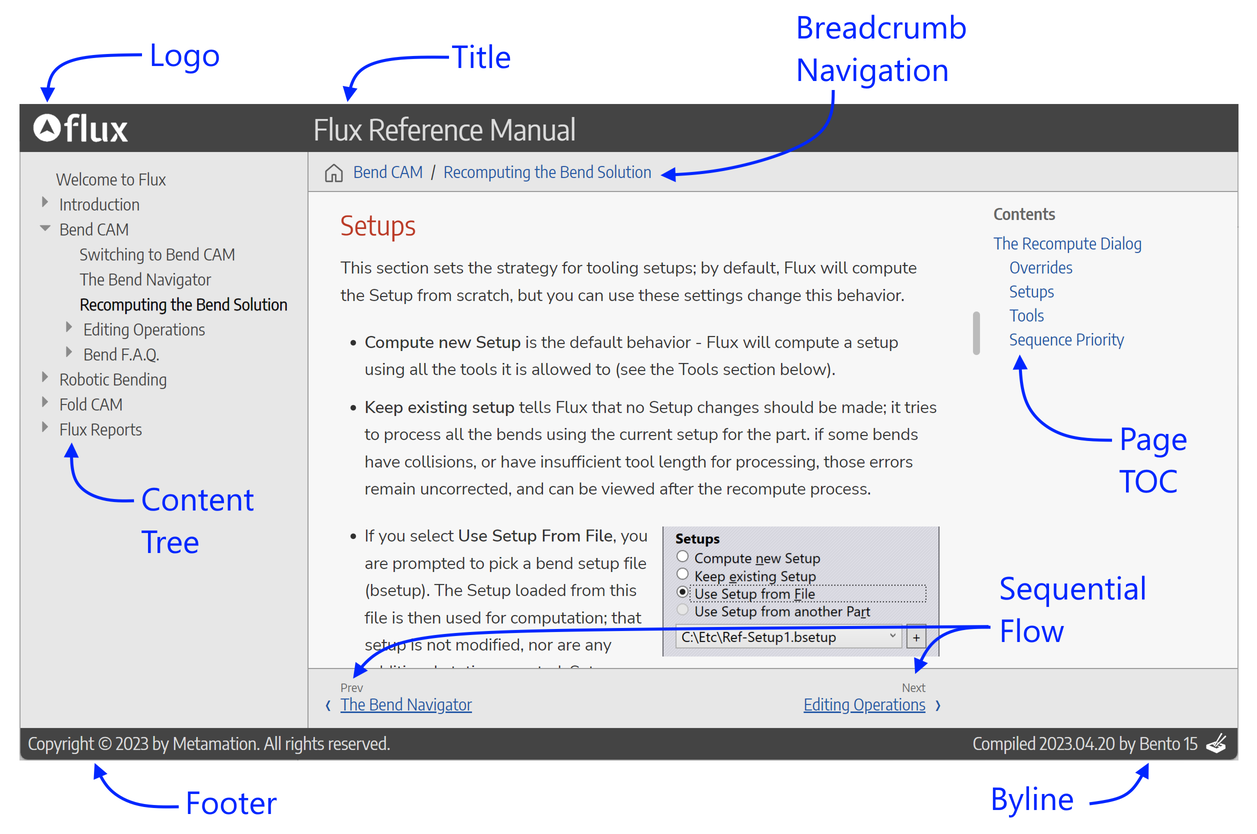
The image below shows a typical HTML page rendered by Bento.
-
The Logo, Title and Footer sections are all set up in the manifest.txt file that was created for the documentation project.
-
The Content Tree provides a collapsible tree-view of all the pages in the documentation project. This is automatically generated from the directory structure of the project and only requires that you create a contents.txt file in each folder that specifies the order in which these pages should appear.
-
The Breadcrumb Navigation provides another way of navigating up the hierarchy of folders, and is useful especially with deeply nested folder structures. This is also generated automatically.
-
The Page TOC (table of contents) for this page is also auto-generated based on the level-1 and level-2 section headings in the page.
-
The Sequential Flow links allow the reader to go back and forth in the documentation like a book. The left-arrow and right-arrow keys can also be used to go to the previous and next pages in the documentation.
Setting up a Bento Project
A Bento project consists of a set of directories (folders), and this folder structure translates into the hierarchical structure of the Content Tree that gets generated.
-
Each folder contains a set of AsciiDoc files (with the extension .adoc). Each of these files gets compiled into a HTML page.
-
The root folder contains a
manifest.txtfile that contains a few settings for the documentation project. Here is a typical manifest.txt file:
TITLE = Acme Reference Manual
OUTDIR = ../AcmeOutput
LOGO = img/logo.png,103,34
ICON = img/favicon.ico
COPYRIGHT = Copyright © 2023 by Acme.-
The OUTDIR setting in the manifest.txt can be a relative path (as above) or an absolute path. Bento will create a folder structure at that output location that matches the source folder structure exactly, except that each .adoc file will be compiled into a .html file.
-
The LOGO is used at the top left. The actual image can be any size, but you should specify as the 2nd and 3rd parameter on that line the width and height - set the height to 34, and the width to a proportionate value (based on the aspect-ratio of your logo image)

-
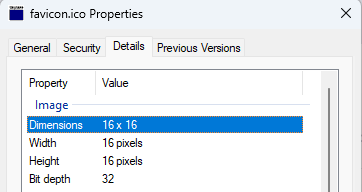
The ICON setting specifies the Favicon used by the webpage. The
.icofile path should be relative to the site root so that all pages can reference it correctly.-
By default, the path is set to img/favicon.ico.
-
The images illustrate the recommended dimensions of the
.icofile and how the favicon appears in the browser tab.
-
-
Each folder should contain an index.adoc file that provides the root content for that folder. Typically, this is a short introduction to the topics being discussed in this section of the documentation. You could also include here links to the pages in this section.
-
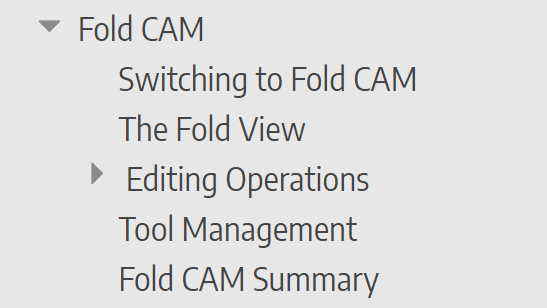 Each folder also contains a contents.txt file. This file provides the
order in which the .adoc files in that folder are listed (in the Content
Tree on the left). This file simply lists each source .adoc file, and each
sub-folder that should be considered. Files are represented with the names
(without the .adoc extension), while folders are represented with names
enclosed in square brackets. For example, below is a typical contents.txt file
that is part of the Fold CAM folder, and the image on the right shows how it
renders in the Content Tree.
SwitchingToFold
FoldView
[Editing]
ToolManagement
FoldSummary
In this example, there are content files with names like SwitchingToFold.adoc, FoldView.adoc etc. And there is a subfolder called Editing. As you can see, the order of files and sub-folders in the contents.txt file specifies how the content tree is generated.
Images
The AsciiDoc file can references images, and the convention is to place these in an img sub-folder inside that folder. Then, you should use the :imagesdir: variable to point to the images. Thus a typical document would begin like this:
  = Document Title
  :imagesdir: img

Using an image is like this. The image is resolved from the img subfolder as
specified by the :imagesdir: attribute above.
Invoking Bento
Bento processes a single command-line argument. When the argument specifies a directory path, Bento searches for a manifest.txt file within that directory and initiates compilation based on its definitions. If the argument denotes a file name, Bento interprets it as the explicit manifest file to be used for project compilation.
Any Bento manifest file must have a filename that ends with manifest.txt (like flux-manifest.txt, for example). This second form is used when there are multiple manifest files for some Bento content, each with different attributes, designed to compile different flavors of the documentation.
Bento commands
To see a list of available bento commands type bento help in the command
prompt window. You will see the bento version followed by the Compilation
switches and the Operations commands.
Compilation switches:
  <no parameters>       : compile project with default flavor
  -flavor=FLUX          : set flavor to FLUX
  -attribute=ATTR       : defines the conditional attribute ATTR
  -attribute=KEY:VALUE  : defines the attribute KEY to VALUE
  -rebuild              : force a complete rebuild (not incremental)
  -uixlate              : looks up UI terms from the language string tables
  -debuguixlate         : highlight every UI term in yellow
  -language=FR          : sets uixlate language (default = EN)
  -altlanguage=EN       : also includes second language translations in [Brackets]
  -checkorphans         : check for orphaned pages & images

Operations:
  remove Page1          : removes the Page1.adoc page
  rename Page2 AltPage  : renames Page2.adoc to AltPage.adoc
  move Page3 Folder     : moves Page3.adoc to specified Folder
  pngcrush Folder       : optimizes PNG files in Folder (and subfolders)
  pngcrush File.png     : optimizes specific PNG file